
Site Localization
Updated 3 weeks ago
If you want to apply several languages on your website you need to use multi-lingual plugins. It's not possible to have a multi-lingual website without 3rd-party plugins.
Any Impreza website has strings (words and phrases) from the following sources:
- Your content, which is manually added
- WordPress built-in strings
- Impreza built-in strings
- Plugins built-in strings
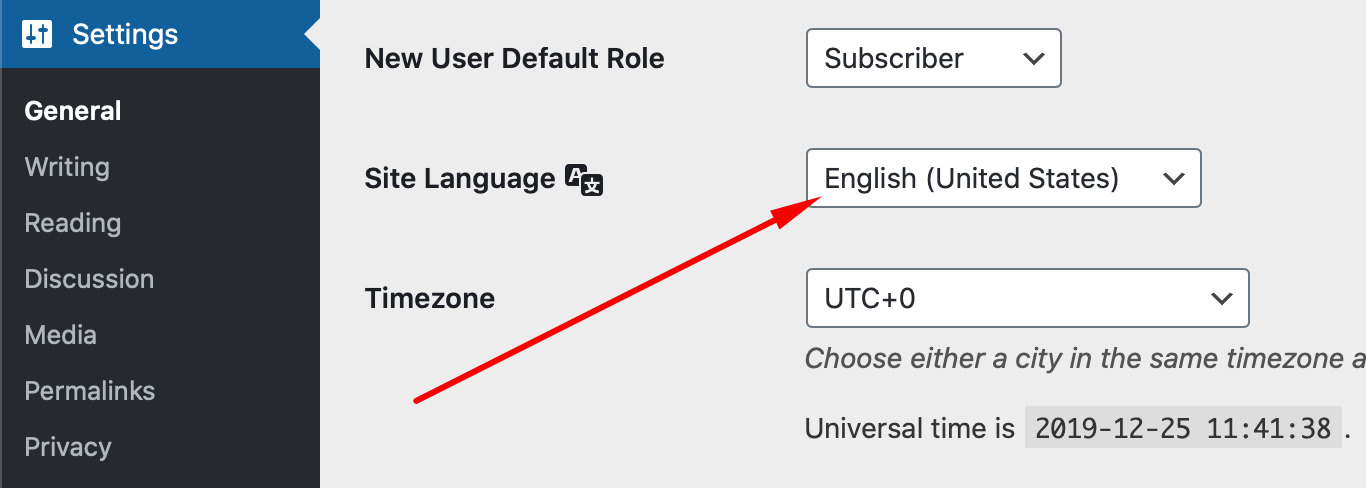
The translation of built-in strings is automatically applied when you change the language in the “Site Language” option at Settings > General:
Impreza built-in translations #
Impreza has the following translations in the package:
- German
- Brazilian Portuguese
- Spanish
- French
- Italian
- Dutch
- Czech
- Polish
- Russian
Theme translations for these languages are made by Impreza buyers in the POEditor project. Join the project, after that you can:
- Translate the untranslated strings to your language with other people
- Update or fix the existing translated strings
- Download the translation file of your language to apply changes on your site
We update all translations from this project in every Impreza update. Note that we don't moderate translations.
How to add or edit the translation for the existing language #
If your language is listed above, then follow these steps:
- Log in to POEditor project, and pick the needed language.
- Find the desired string on English and add (or edit) its translation:

- Press the Export link, pick the
.mofile format, and click the Export File button. For example: for Dutch language file should be named asnl_NL.mo
- Access your theme file directory (via FTP or plugins) and replace the file at
/wp-content/themes/Impreza/common/languages/directory with the one just exported.
This way, the correct translation will appear on your site, and the next theme update will have this correction included for all users of the same language.
How to add translation for a new language #
If your language is not included in the list above, you'll need to use the Loco Translate free plugin.
- Install and activate the plugin.
- Go to Loco Translate > Themes, then pick Impreza.
- Press the "New language" button in the list of languages.

- Pick the language from the list or add a custom one. After this, pick any of the "Other" translation locations. The "Author" format is not supported. Press the Start translating button afterwards.

- Find the needed string(s), add translations, and Save сhanges.

Theme updates won't change or delete your translations.